
Wi-Fi provides a convenient way to connect the computers in your home without dealing with the hassle of wires, but Wi-Fi is also slow and unreliable compared to a wired connection. Wireless may be the way of the future, but here are some of the best ways to go wired where it counts.

Photo by hdaniel.
We’ve shown you how to go completely wireless in your home, but as we mentioned recently, wireless is a good deal slower than a hard wired connection. Wi-Fi is undoubtedly useful and convenient for a lot of networking needs, but it can also cause a lot of frustration: interference, dropped connections, lag, and worst of all, slow speeds when it really counts. Browsing the internet isn’t terrible over wireless (usually), but the moment you try to transfer large files, play multiplayer games online, you start to feel the hurt. While you can do a lot to increase your wireless strength, you’ll see the best increases and better reliability if you switch your most mission-critical gear to a wired connection.
Why (and When) You Might Want to Go Wired
Here are a few instances where you may notice much better performance over a wired connection:
- Large File Transfers: You won’t notice much of a difference when you’re transferring small files between computers on your local network, but as soon as you need to transfer something over 1GB or so, your wireless connection can really start to show its true colours.
- Gaming: Any gamer that’s tried to play multiplayer over a bad connection knows how annoying it can be. You think you’re rocking only to realise your connection was lagging for 10 seconds and you’ve just been killed twice. A more reliable wired connection will keep that from happening.
- Movies: Streaming is the future video entertainment, but a lot of Wi-Fi connections can choke on streaming HD content. Not only will your picture be less than stellar, but movies can take a while to buffer before they become watchable. A straight wired connection will get you crystal clear HD and quick streaming, so you don’t ever have to worry about seeing a “buffering” message. Even if you’re using something like iTunes to download a movie, it can seem like it takes an eternity over wireless, which isn’t fun when you want to watch a movie right now.
- Video Chat: Like streaming movies, video chat needs some pretty serious bandwidth to give you smooth, high-resolution video. Sure, you could make do with a blurry, choppy video, but you might as well be on a phone call at that point. For really good video chat sessions, you’ll want to wire up.
There are even more examples of when you might want a fast connection — especially if you do a lot of work between different computers in your home — but these are some of the most common places you’ll get a much better experience from a wired connection. Luckily, you don’t need to call a contractor just to wire up the computers in your home. Here are some of the best ways to do it. Photo by nrkbeta.
The Basic Hardware: Routers, Switches and Hubs
Before you worry about how you’re going to string wires through your house, you’ll need a few things to connect them all together. Here are the pieces of hardware you’ll want to pick up before you start wiring.
Routers
Assuming your main goal is to not only connect your machines to one another, but also to the internet, a router will be the glue that holds this all together. You probably already have one lying around, and it’ll probably do just fine. Most wireless routers also have four ports in the back that make for a perfectly fine wired network, so there’s no need to go out and buy a new wired router (in fact, you’ll probably still want wireless around for laptop and iPad browsing). If you don’t have a router capable of a wired network (like the Apple AirPort Express), you can go pick one up a high-speed wired router for less than $US100. If you want the fastest possible speeds, make sure it says 10/100/1000Mbps and not just 10/100Mbps.

Using the router is easy: just plug your modem into the “Internet” port on your router with an Ethernet cable, and then plug your computers, DVRs, video game systems, and other machines into the other four ports on the router.
Switches
This is where the other hardware comes in: it’s likely that when you look at everything you need to wire up, you realise you have more devices than you thought. I myself have my desktop machine, a home theatre PC, a TiVo and an AirPort Express in my apartment, which is four devices right there — if you live in a house with other people that have their own computers, multiple DVRs, or video game systems, four ports is not gonig to be enough. To connect more than four devices to most consumer routers, you’ll need what’s called a switch.

Switches are just boxes that direct traffic from one port to many ports. Unlike routers, they can’t assign IP addresses — they just direct traffic from your router to your other devices. So while a switch can’t be the basis for a home network, adding it to your arsenal basically turns your 4-port router into an 8-port router for a mere $US25 or so. Just plug one end of an Ethernet cable into the Uplink port on your switch, and the other end into one of the four regular ports on your router. If your switch doesn’t have an Uplink port, you’ll need to use a Crossover cable instead of an Ethernet cable, and then you can just plug it into one of the regular ports on the switch.
Hubs
I won’t go into too much detail about hubs here, except to tell you that though they are often lumped in with (or confused for) switches, they are not the same. They look a lot alike, but unlike switches, hubs only have one lane of traffic — you can either send data from many devices to one, or one devices to many. It doesn’t “direct traffic” like a switch does. Thus, while they’re cheaper than switches, they’re only really useful for, say, servers that you’re sending data to from multiple machines.
Getting Your Cables Across the House
Now that you’ve got a good router and some extra ports to accept all your devices, it’s time to hook them up. Unfortunately, it’s unlikely all your devices are in the same room — they’re probably across the hall, or even on different levels of the house. Here are the two fastest ways to get them connected to your main router.
The Cheap (and Fastest) Method: Straight Ethernet Cables
This method’s a bit obvious (and somewhat inconvenient), but it deserves mention because it’s the fastest method you can possibly use. Nothings faster than just stringing a device to a router with an Ethernet cable, so if you can, think about strategic ways to do this before you move on to other solutions. If your device is in an adjacent room or across the hall, maybe you can run it beneath the floor, tape it down and rug it under your run or carpet, or string it behind furniture. You could also creatively display your wires if you have a knack for crafts, though if all else fails there are a few products on the market that will help you hide your cables without ripping open your wall.

If you’re lucky, you can get a few devices wired up without making your house look ridiculous, and keep those blazing fast speeds. If not, it’s time to move on to the slightly slower — but still more than adequate — powerline adaptor method. Photo by Andy Melton.
The Tidier (but Slower) Route: Powerline Adapters
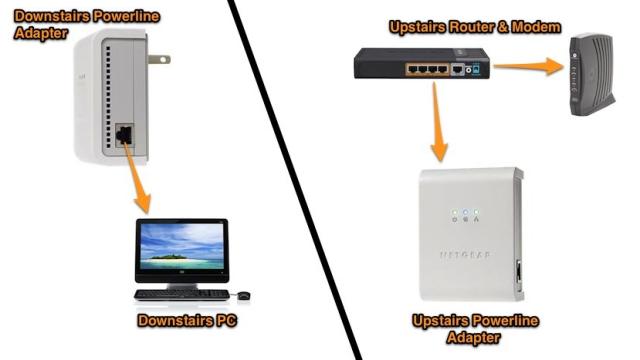
The neatest way to wire up your devices is with powerline adaptors. These handy little devices plug into your wall and actually use your home’s electrical wiring to transmit data. They aren’t quite as fast as a regular Ethernet cable, but most models will get you about 200Mbps, some offering up to 500Mbps. It’s not as fast as pure Ethernet, but it will certainly get you enough bandwidth to comfortably play video games, stream high definition video, and transfer big files fairly quickly — and it’s much more reliable than wireless. Plus, unless you currently have the latest and greatest wireless router in your home, it’s still probably a good deal faster too.

Just plug one into your wall in the room with your router, connect it to your router with an Ethernet cable, and plug the other one in the wall next to your far away devices. Note that you need to plug them right into the wall; you can’t plug them into a power strip or extension cord.
Now, while they’re much more reliable than wireless, they can have their share of issues. Make sure whatever you buy is returnable, because depending on your house’s wiring, you could experience some electrical interference, meaning you’ll get slower than advertised speeds (and meaning this probably isn’t the best option). Again, this isn’t as common as wireless interference, but it’s something you’ll at least want to be aware of.
Why Not Just Use Wireless-N?
While wired connections have a lot of advantages, many Wireless-N routers advertise speeds comparable to the powerline adapters described above. However, you have a lot more things to consider with wireless, namely:
Cost: You can get a 450Mbps Wireless-N router for the same price as two 500Mbps powerline adaptors, but you’ll need to make sure all your devices are Wireless-N too if you want those high speeds. This can get pretty costly when you’re upgrading multiple computers, game systems and other boxes (and it’s not always possible with some devices, like laptops). Sure, you may also need more than two powerline adaptors, but you still only need one powerline adaptor per room, whereas you’ll need one Wireless-N adaptor per device. Furthermore, if you need any wireless extenders, that’s even more money you’ll have to spend on your network. Depending on what you may or may not have already lying around, going the wireless route can get pretty pricey.
Reliability: Sadly, wireless is finicky. Yes, there are quite a few things you can do to fix that, but range, interference and other latency issues are almost always going to come into play when you’re setting up a wireless network. At the very best, you’ll have to think a lot harder about the logistics of setting it up, and that’s no fun; at the worst, you’ll be stuck with much slower speeds than advertised.
One of my favourite video blogs, NCIX Tech Tips, has actually done a nice demo of Wireless-N vs Gigabit Ethernet vs Powerline Adaptors (video above). If you’re still sceptical, I’d recommend checking it out to see what the different methods look like, and what their advantages and disadvantages are. In the end, picking between wired and wireless is about your specific needs — my point here is not to tell you you should go wired, but all the different tools you have at your disposal to make it happen should you choose that route.
Of course, as I mentioned before, it’s probably not possible to go completely wired in your home, but it is possible to get all your important devices hooked up to Ethernet one way or another. Then, you can just use a wireless router — any old router will do (I’m still on Wireless G myself) — to get basic internet access to your laptop, tablet and smartphone, and to give internet access to anyone that comes over with their laptop or smartphone. All in all, though, getting as many things wired as possible gets you the fastest speeds around, and if you’re watching video, playing games, or just transferring files between computers, it’s definitely worth it.
What’s your home network setup look like? If you’ve got any relevant experiences to share, good or bad, share them with us in the comments.
Republished from Lifehacker