
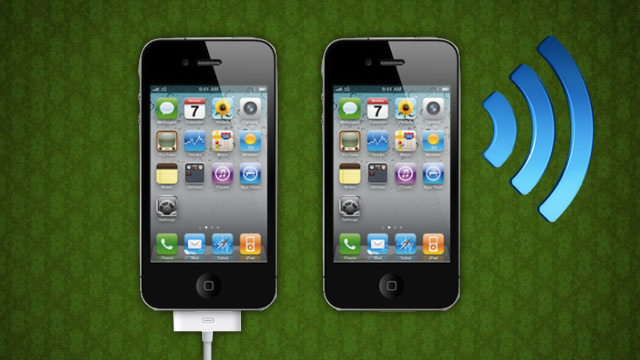
One of the big new features in iOS 5 is liberation from your sync cable. Now, you can sync your music, movies and apps all over Wi-Fi — albeit a bit slower than over USB. How much slower? We put it to the test to find out whether it was still fast enough to be worth your time.

While syncing your latest album, movie, or apps over USB is pretty darn fast, there’s something to be said for the convenience of wireless sync. From anywhere in the house, you can just tap a button on your iPhone, iPod Touch or iPad to get them all sent to your device–without even having to get out of your chair. The only problem is speed. Wi-Fi is notoriously slower than wired connections, but we set out to see just how much slower — for music, movies, and apps — to see whether it was worth the waiting. Here’s what we found.
How We Tested
We ran these tests on a Windows desktop over 802.11g with a 4th generation iPod Touch. We ran three tests for each syncing medium: a music test in which we synced four albums of music, a music and movies test in which we synced those four albums plus a movie downloaded from the iTunes store and an apps test in which we synced seven apps from the App Store. We timed it from the pressing of the Sync button to the moment the Apple logo reappeared in iTunes’ playback bar, when the sync ended.
The Results: Wi-Fi Is Slower, But Usable for Music and Apps
Music: Syncing four albums only took about 28 seconds over USB, which increased to about 6.5 minutes over Wi-Fi. That’s a pretty big difference — as in it was 14 times slower — but 6.5 minutes still isn’t a long period of time, as long as you aren’t rushing out the door. And if you have less than four albums to sync, it becomes even less noticeable.

Music and a Movie: Syncing four albums and a 2.5-hour movie over USB took significantly longer than just syncing music, but still not so much that you’d get bored while it was running. Syncing it over Wi-Fi, though, was absolutely painful — it took over 20 minutes to sync. If you’re just sitting around, I suppose you could sync a movie or two over Wi-Fi, but be prepared for it to take a long time.

Apps: Apps are a completely different beast altogether. Syncing seven apps over USB took a little over a minute, which isn’t bad, but was surprisingly long considering each app is only 10-20MB large. Syncing over Wi-Fi only took twice as long — a little over two minutes. It seems like large part of app syncing is probably the unpacking and installation, which takes place on iOS, and has nothing to do with your connection speed. As such, syncing apps over Wi-Fi shows a much smaller difference compared to USB than does syncing media over Wi-Fi.

All: Syncing four albums, a movie, and seven apps took about as much time as you’d expect on each. Add up the values from the other test and it’s about the same as trying to sync them all in one fell swoop — which, by the way, we probably wouldn’t recommend doing over Wi-Fi unless you have nowhere to go.

Other Things to Consider
While music and movies take 13 times longer over Wi-Fi than over USB, it’s still a relatively short amount of time — 6.5 minutes for four albums isn’t bad. If you aren’t rushing out the door, it’s certainly worth the “not getting out of your chair” factor, and if you’re only syncing one or two albums, it’ll be even faster. This benefit grows with something like the iPad, which is more difficult to just keep docked at your computer all the time — instead of finding it and bringing it to your computer all the time, you can just hit the sync button on either device and let it go to town.
The other awesome thing about Wi-Fi syncing is that you can still use your device while you sync, which is awesome. If you want to sit in one room and listen to music on your iPod, or read your Instapaper queue on the iPad, you don’t need to sacrifice any of that time futzing with sync cables — just hit the sync button and keep on doing what you’re doing. A little sync icon will show up in the menu bar while it syncs and disappear when it’s done.
Lastly, there seems to be a misconception that your iPhone has to be charging for it to sync with iTunes over Wi-Fi. This is not true. You can sync when unplugged, as long as you have enough battery left in your phone and as long as iTunes is open. It will, however, automatically sync itself whenever you plug it in, which is a great feature.
Overall, Wi-Fi syncing is mostly what we expected — a slower version of USB syncing. However, if you’re syncing a small amount of media, it doesn’t make a huge difference, and if you’re syncing apps, there’s almost no reason to plug in at all. Also keep in mind that we were using a 802.11g network, and if you’re on the newer 802.11n, you might notice even faster Wi-Fi times. And with the ability to keep using your device while you sync, it is very freeing to have Wi-Fi sync around, as long as you don’t have anywhere to be. Have you tried Wi-Fi sync on iOS 5 yet? Share your thoughts with us in the comments.